
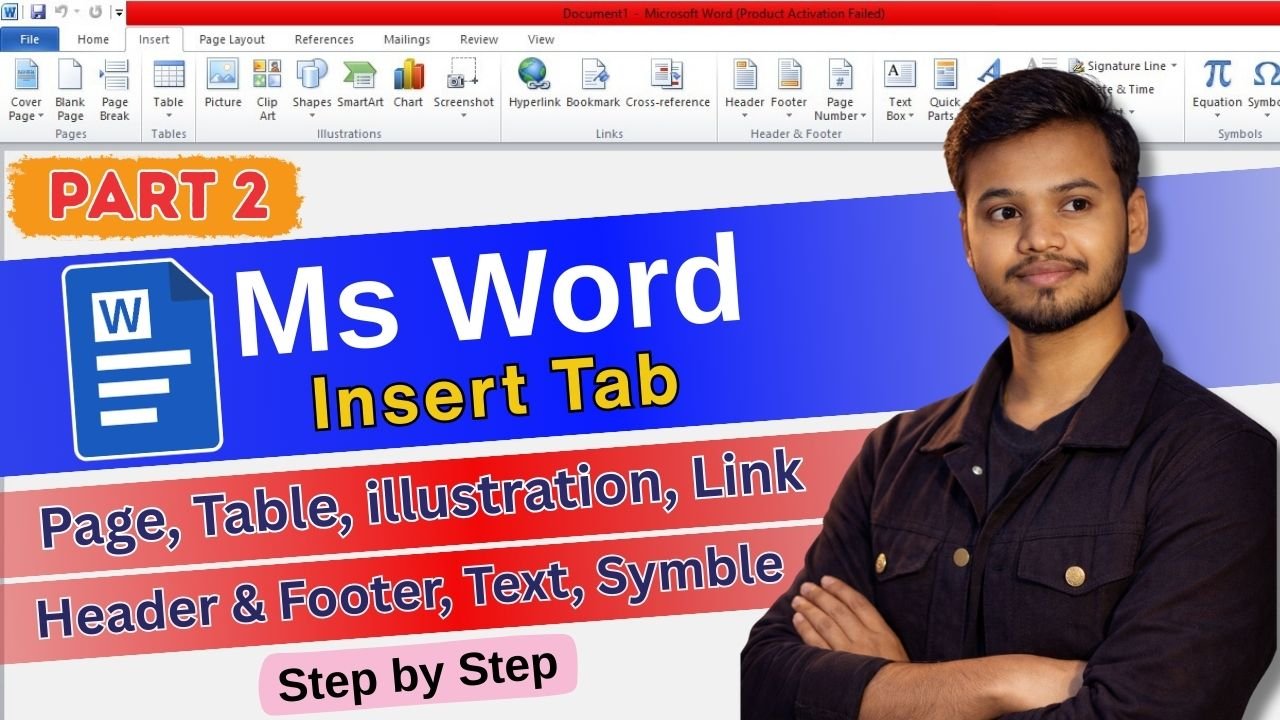
Insert Tab का use document में नई चीजें जोड़ने के लिए किया जाता है।
जैसे: Page, Table, Picture, Shape, Chart, Header-Footer, Page Number, Symbol वगैरह।
Insert Tab में आमतौर पर ये मुख्य Groups होते हैं:
- Pages
- Tables
- Illustrations
- Add-ins
- Media
- Links
- Comments
- Header & Footer
- Text
- Symbols
अब इन्हें एक-एक करके detail में समझते हैं।
1. Pages Group
Cover Page
Cover Page का use document के पहले page को professional look देने के लिए होता है।
Example:
Project, report या assignment के पहले एक attractive cover page लगाना।
Blank Page
Current page के बाद एक new blank page add करने के लिए use होता है।
Example:
अगर document के बीच में नया chapter शुरू करना हो।
Page Break
Page Break current page को खत्म करके next page शुरू करता है।
Example:
Title नीचे नहीं जाना चाहिए, इसलिए page break डाल देते हैं।
2. Tables Group
Table
Table का use data को rows और columns में लिखने के लिए होता है।
Example:
Student list, marksheet, bill format, timetable।
आप mouse से table draw कर सकते हैं या rows-columns select कर सकते हैं।
3. Illustrations Group
Pictures
Computer से image insert करने के लिए use होता है।
Example:
ID proof, product image, diagram।
Online Pictures
Internet से image search करके insert करने के लिए।
Shapes
Circle, rectangle, arrow, line जैसी shapes add करने के लिए।
Example:
Flowchart या diagram बनाना।
Icons
Ready-made icons insert करने के लिए।
Example:
Phone, email, location icon।
3D Models
3D images add करने के लिए use होता है (new versions में)।
Example:
Education presentation में 3D object।
SmartArt
Process, hierarchy, steps दिखाने के लिए use होता है।
Example:
Company structure, step-by-step process।
Chart
Graph बनाने के लिए use होता है।
Example:
Marks graph, sales report, comparison chart।
4. Add-ins Group
Get Add-ins
Extra tools install करने के लिए use होता है।
Example:
Dictionary, translator या productivity tools।
My Add-ins
पहले से install किए गए add-ins को open करने के लिए।
5. Media Group
Online Video
Document में online video insert करने के लिए use होता है।
Example:
Training material या tutorial video।
6. Links Group
Link (Hyperlink)
Text या image को website, file या email से जोड़ने के लिए।
Example:
“Click Here” पर website open होना।
Bookmark
Document के किसी खास point को mark करने के लिए।
Example:
Long document में direct jump करना।
Cross-reference
Document के अंदर किसी heading, table या page से link बनाने के लिए।
7. Comments Group
Comment
Document में note या feedback देने के लिए use होता है।
Example:
Teacher student के assignment में suggestion लिखता है।
Comment सिर्फ दिखता है, print में शामिल नहीं होता।
8. Header & Footer Group
Header
हर page के ऊपर दिखने वाला text।
Example:
Company name, document title।
Footer
हर page के नीचे दिखने वाला text।
Example:
Address, email।
Page Number
Pages को automatic number देने के लिए।
Example:
1, 2, 3… bottom या top में।
9. Text Group
Text Box
Move करने वाला text box add करने के लिए।
Example:
Side note या highlight text।
Quick Parts
Saved text को बार-बार use करने के लिए।
Example:
Office address, signature।
WordArt
Stylish और design वाला text बनाने के लिए।
Drop Cap
Paragraph के पहले letter को बड़ा करने के लिए।
Example:
Books या magazine style design।
Signature Line
Digital signature add करने के लिए।
Date & Time
Current date और time insert करने के लिए।
Example:
Application या letter में date।

Object
Excel file, PDF या अन्य file को insert करने के लिए।
10. Symbols Group
Equation
Maths की equation लिखने के लिए।
Example:
(a+b)², fraction, algebra।
Symbol
Special signs insert करने के लिए।
Example:
©, ®, ₹, %, ∞।
Insert Tab का Practical Use
Insert Tab से आप:
- Professional document बना सकते हैं
- Project, resume, assignment design कर सकते हैं
- Data को clear और attractive दिखा सकते हैं
- Text के साथ image, chart, table जोड़ सकते हैं
अगर Insert Tab अच्छे से आ गया, तो आपका document simple नहीं बल्कि professional दिखने लगता है।