
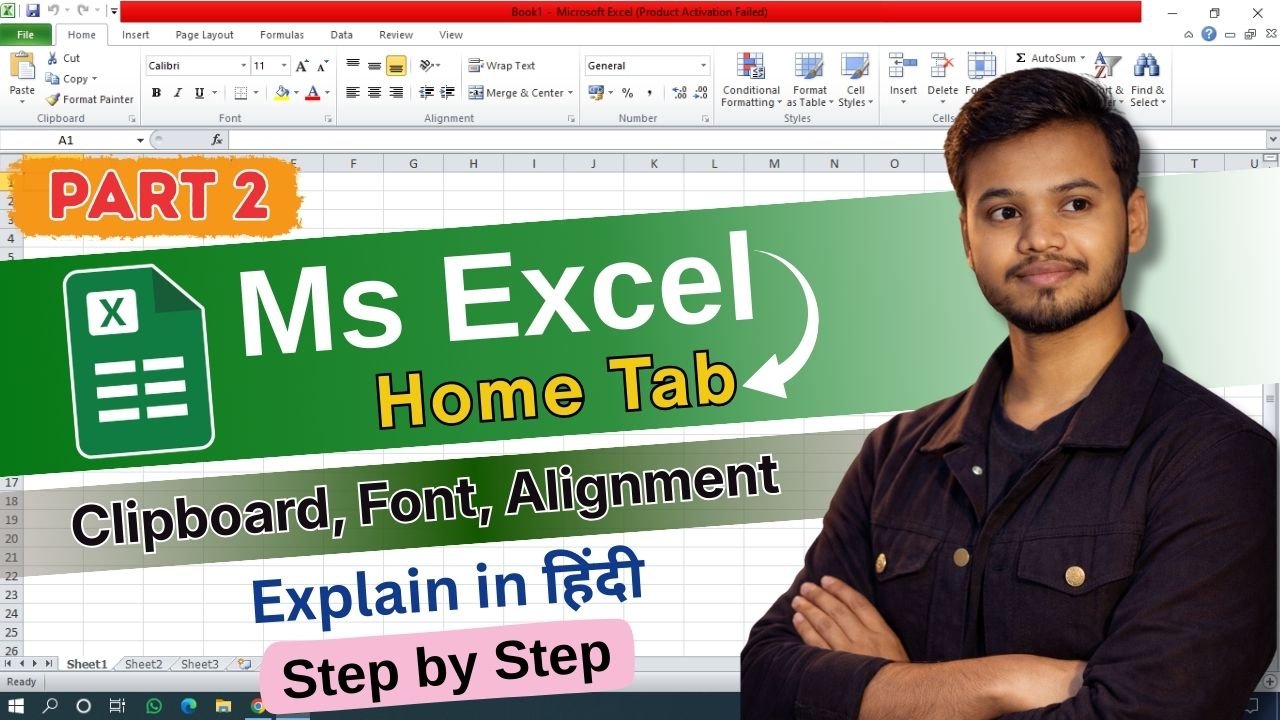
MS Excel में Home Tab सबसे ज्यादा use किया जाने वाला tab होता है। Excel खोलते ही जो tab सबसे पहले दिखाई देता है वही Home Tab होता है। इसमें ऐसे tools मिले है जिनसे हम data लिखना, format करना, design बदलना और calculation को easy बना सकते है। Beginner से लेकर advanced user तक सभी के लिए Home Tab बहुत important होता है।
Clipboard Group (Copy–Paste से जुड़े tools)
Home Tab का सबसे पहला group Clipboard होता है। इसमें Cut, Copy और Paste जैसे basic tools मिले है। Cut option से selected data को remove करके दूसरी जगह paste किया जाता है। Copy का use same data को दूसरी जगह duplicate करने के लिए होता है। Paste option से copy या cut किया गया data worksheet में डाल सकते है। Format Painter भी इसी group में होता है जिससे एक cell का format दूसरे cell पर apply किया जाता है।
Font Group (Text और Cell का look बदलने के tools)
Font Group का use cell के text को attractive बनाने के लिए किया जाता है। यहाँ से font style change कर सकते है जैसे Arial, Calibri आदि। Font size बढ़ाने या घटाने का option भी मिलता है। Bold, Italic और Underline से text को highlight किया जाता है। Font color और Fill color का use करके text और cell background का color change किया जा सकता है। Border option से cells के चारों तरफ lines लगाई जाती है।
Alignment Group (Text को सही position पर set करना)
Alignment Group से cell के अंदर text की position control की जाती है। Left, Center और Right alignment से text को horizontal direction में set कर सकते है। Top, Middle और Bottom alignment vertical position के लिए होता है। Wrap Text option से long text cell के अंदर ही proper तरीके से दिखता है। Merge & Center का use एक से ज्यादा cells को जोड़कर एक बड़ा cell बनाने के लिए किया जाता है।
Number Group (Data के type के अनुसार format)
Number Group Excel का बहुत useful part है। यहाँ से numbers को General, Number, Currency, Accounting, Date या Percentage format में बदला जाता है। Decimal increase या decrease करके numbers के बाद आने वाले point को control कर सकते है। Currency format से amount को ₹ या दूसरे symbol के साथ दिखाया जाता है जो financial work में काफी use होता है।
Styles Group (Ready made design styles)
Styles Group में Conditional Formatting, Cell Styles और Format as Table जैसे options मिले है। Conditional Formatting से rules लगाकर data को color के साथ highlight किया जा सकता है। Cell Styles में pre-designed styles available होते है। Format as Table से simple data को professional table look दिया जा सकता है जिससे data read करना easy हो जाता है।
Cells Group (Row और Column control)
Cells Group में Insert, Delete और Format options मिले है। Insert से new row, column या cell add कर सकते है। Delete से extra row या column remove किया जाता है। Format option से row height, column width, hide और unhide जैसे settings control की जाती है। Large worksheet manage करने में यह group बहुत help करता है।
Editing Group (Calculation और data editing)
Home Tab का last group Editing होता है। AutoSum का use total, average, count जैसे calculation करने के लिए किया जाता है। Fill option से series या data automatically fill किया जा सकता है। Clear से cell का content, format या comment remove होता है। Sort & Filter से data को order में arrange या filter किया जाता है। Find & Select option से specific text या value जल्दी search की जा सकती है।